












How to Set Up The Choicer Voicer for Twitch Streaming
What Is The Choicer Voicer?
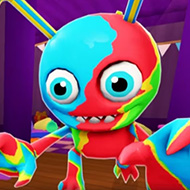
The Choicer Voicer is an early access party game developed by YeahMaybe for Windows and Linux, built around doing vocal impressions in a game-show format. Players are judged on how closely their voice matches a chosen audio clip, and the game is highly customizable through downloadable or self-made “content packs” covering voice clips, judges, hosts, contestants, menus, and studio themes. One of its standout features is a dedicated Twitch mode, which lets a streamer’s chat vote on performances directly, and even lets viewers submit their own voices into the show. This makes it a natural fit for interactive, community-driven streams.
Why Streamers Are Interested in It
Most party or trivia-style streaming games rely on chat typing commands into a browser extension or bot. The Choicer Voicer instead builds Twitch interactivity directly into the game client, meaning chat can influence outcomes in real time without a third-party overlay. Combined with its comedic, improv-friendly format, it works well for variety streams, co-streams with friends, or dedicated “audience judged” content segments.
Before You Start: System and Purchase Notes
Before setting up a stream, it helps to know a few practical details about the game itself:
- The game is currently available only for Windows and Linux; there is no macOS or Chromebook build.
- It is a paid title (minimum $5 USD) distributed through itch.io, and it is still in early access alpha.
- There is a known, unresolved microphone bug tied to certain audio setups (possibly related to surround-sound configurations and Godot Engine limitations) that can prevent the game from recording audio at all.
- A free “No Gameplay Demo” exists specifically so you can test whether your microphone works with the engine before buying the full game.
- The game ships with very little built-in content — voice packs, judges, hosts, and studios mostly need to be downloaded separately or created by you.
Because of the microphone issue, testing audio input before going live is not optional — it is the single most important step in setting this game up for a stream.
Step 1: Test Your Microphone First
Download the free No Gameplay Demo from the itch.io page and confirm that your voice is actually being picked up and registered. Since the recording bug can make the full game effectively unplayable on certain hardware, doing this test before a live broadcast avoids the embarrassment of dead air or a stalled game show segment in front of your audience.
- Run the demo and speak into your microphone at your normal streaming volume.
- Check whether the in-game waveform or audio meter actually responds to your voice.
- If you use a surround-sound or multi-channel audio interface, consider temporarily switching to a simple stereo input device to rule out driver-related conflicts.
- If the mic still won’t record, check the game’s devlog and community boards — the developer has posted possible fixes and maintains an active thread specifically for microphone issues.
Step 2: Install and Launch the Game
Purchase and download the appropriate build for your operating system from itch.io (Windows or Linux), then install it like any other downloadable indie title. On first launch, you’ll land in the main menu, where the game’s aesthetics, judge panel, host, studio, and available content can all be swapped through the Customize menu.
Step 3: Gather Content Packs
Because the base game intentionally ships with minimal content, you’ll want to source or build content packs before streaming so your show doesn’t run dry after a few rounds. Content packs are simple folders of audio files, and the developer maintains a companion website with guides on building your own.
| Content Pack Type | Purpose | Streaming Relevance |
|---|---|---|
| Voice Packs | The audio clips players try to imitate | Pick themes your audience will recognize (memes, shows, inside jokes) for stronger chat engagement |
| Judges | The characters/panel that score performances | Can be swapped for variety between stream segments |
| Host | Narrates and runs the show | Sets the tone/comedy style of your broadcast |
| Studio | The visual backdrop/set for gameplay | Affects how the game looks on your capture/scene |
| Contestant | Player-facing visuals | Useful for co-streams with multiple players on screen |
| Menu | Overall menu theming | Cosmetic, purely for branding your stream’s look |
You can install packs made by other players or create your own — the developer notes that making a voice pack is as simple as dropping audio files into the correct folder, with detailed guides available on the game’s companion Neocities site.
Step 4: Choose the Right Mode for Your Stream
The Choicer Voicer includes several modes, but not all of them are built for chat interaction. Picking the right one matters for how your stream will actually play out.
| Mode | Players | Good For |
|---|---|---|
| Standard Game Show | 1–4 (local) | Solo streaming or in-person co-op with friends in the room; judged by computer judges |
| Twitch Streamer Mode | 1 (streamer) + chat | Letting your Twitch chat vote on your performances directly from chat |
| Viewer Voice Packs | Streamer + viewer-submitted audio | Letting your community submit clips that become part of the show itself |
| Dub Mode | 1 | Voiceover-style segments dubbing over favorite scenes |
For a chat-driven broadcast, the Twitch Streamer variant is the one to select from the Customize/mode menu — this is the mode built specifically to read input from your Twitch chat and use it to influence judging.
Step 5: Connect the Game to Your Twitch Channel
To let chat participate, the game’s Twitch mode needs to be linked to your channel so it can read chat messages as votes or commands. In general, this kind of integration follows a familiar pattern for chat-connected indie games:
- Open the Twitch-specific mode or settings panel inside the Customize menu.
- Enter your Twitch channel name where prompted so the game can connect to your chat.
- Confirm the connection is active — most games of this type show a simple status indicator once chat messages start coming through.
- Do a private test round (stream offline or in a low-traffic moment) to confirm chat votes register correctly before going live.
Because this is an early access alpha and the connection flow can change between updates, it’s worth checking the game’s devlog before each stream in case chat-integration steps have been adjusted in a recent patch.
Step 6: Set Up Your Streaming Software
Once the game itself is configured, add it to your broadcasting software (OBS, Streamlabs, or similar) like any other game capture:
- Add a Game Capture or Window Capture source pointing to The Choicer Voicer.
- Route your microphone audio into your streaming software separately, so viewers can hear you even during segments where the game’s own audio levels dip.
- Consider a webcam overlay so chat can see your reactions during impressions — much of the entertainment value comes from facial expressions during vocal attempts.
- If you’re running Viewer Voice Packs, set aside a visible on-screen prompt reminding chat how to submit clips, since that process happens outside the game itself (via your submission method of choice, such as a Discord or form link).
Step 7: Plan Your Content Rotation
Since the game ships with very little built-in content, an unprepared stream can run out of material quickly. A short pre-stream checklist helps:
- Load at least 2–3 different voice packs so you can rotate themes throughout the broadcast.
- Mix judge and host packs between segments to keep the visual presentation fresh.
- Prepare a fallback plan (e.g., switching to Dub Mode) in case the Twitch chat-voting segment runs into technical hiccups.
- Keep the microphone test demo installed separately, so you can quickly re-verify audio input if something breaks mid-stream.
Common Issues and Quick Fixes
| Issue | Likely Cause | Suggested Fix |
|---|---|---|
| Game doesn’t record voice at all | Known Godot Engine microphone bug, often tied to surround-sound setups | Test with the free demo first; try switching to a stereo audio device; check the developer’s mic-fix devlog posts |
| Chat votes not registering | Twitch mode not properly connected, or channel name mistyped | Re-enter your channel name and re-test the connection before going live |
| Not enough content variety | Base game ships with minimal built-in packs | Download community packs or build your own from the companion guide site |
| Random crashes | Early access alpha instability | Keep the game updated to the latest build and check the community board for known issues |
Final Thoughts
The Choicer Voicer is still an early access alpha, so treat any streaming setup as something to test and adjust rather than a one-time configuration. The most important preparation step is confirming your microphone actually records inside the engine, since that specific bug has affected many players. Beyond that, the game’s real strength for streamers is its built-in Twitch chat integration and viewer-submitted voice packs, which turn a simple impressions game into a genuinely interactive audience segment. Spend time building or downloading a solid content rotation beforehand, and the game show format does most of the entertainment work for you.