






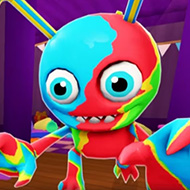






Fixing the “No Sound Recorded” Bug — Full Troubleshooting Guide
The Choicer Voicer, the vocal-impression party game by developer YeahMaybe, has built a loyal early-access following thanks to its silly gameshow format, customizable content packs, and Dub Mode. But almost every discussion of the game eventually runs into the same complaint: the microphone doesn’t record, or the recorded clip plays back as silence or faint static. This is not a rare edge case — it is the single most reported issue in the game’s community hub, and the developer has openly acknowledged it as a known, unresolved problem tied to how the underlying Godot Engine handles audio input. This guide walks through why the bug happens, how to diagnose it on your own system, and every workaround currently available.
Why This Bug Exists
The Choicer Voicer is built in Godot Engine, and its “foundational code,” according to the developer, is roughly two years old. Godot’s microphone input handling has historically lagged behind its other audio features, and several users have traced their symptoms to surround-sound or multi-channel audio configurations rather than anything specific to the game itself. In other words, the bug is less a flaw in The Choicer Voicer’s own code and more a side effect of a limitation in the engine it’s built on. The developer has been transparent about this on the store page, warning new buyers directly and pointing them toward a free “No Gameplay Demo” specifically so people can test their microphone setup before spending money on the full game.
Because the root cause lives partly outside the developer’s control, a single definitive patch has been elusive. However, a community pull request submitted to the Godot Engine repository (credited to a contributor known as Buzzlord, with additional help from Studio Jimbly) prompted the developer to ship an experimental test build, versioned 0.5.2-dev2, aimed specifically at resolving the issue. Results from that build have been mixed but mostly positive, which is discussed in detail below.
Common Symptoms Reported by Players
“No Sound Recorded” isn’t always the exact wording players see — the bug manifests in a handful of related ways. Recognizing which variant you’re experiencing helps narrow down the right fix.
- The waveform visibly reacts to your voice while recording, but the resulting clip plays back completely silent.
- The waveform reacts and the game registers a “correct” or “close” match, yet reviewing the recording afterward produces only faint noise or static instead of your voice.
- Nothing is captured at all — no waveform movement, no score, no audio file generated.
- The mic works fine at first, but breaks the moment you manually switch the input device away from “Default” in the settings menu.
- The game crashes or freezes (“Not Responding”) mid-recording, particularly during Dub Mode sessions.
The first two symptoms — visible waveform with silent or garbled playback — are the most frequently reported, and they point specifically toward a playback/encoding issue rather than a true failure to capture audio. The third symptom, total silence with no waveform, is more consistent with an input device or permissions problem. Crashes are a separate issue and are addressed near the end of this guide.
Step-by-Step Troubleshooting
Work through these steps in order. Most reported cases are resolved somewhere in the first four steps, but surround-sound and unusual audio hardware setups sometimes require the later, more involved fixes.
- Test in the free demo first. Before troubleshooting the full paid build, download the “No Gameplay Demo” from the store page. It exists purely to let you confirm whether your microphone will work before you buy or before you spend time debugging. If the demo fails, the full game will fail identically.
- Leave your input device set to “Default.” Several players confirmed that recording worked fine on the default input device but broke the instant they manually selected their specific microphone from the dropdown — and switching back to “Default” afterward did not restore functionality in the same session. If you haven’t touched this setting, don’t. If you have, try relaunching the game with the input left untouched.
- Check your Windows/Linux sound panel for channel configuration. Community reports link the bug to surround-sound or multi-channel setups (5.1, 7.1, or virtual surround software from headset manufacturers). Temporarily switching your system’s default playback/recording device to a simple stereo configuration has resolved the issue for some players.
- Disable microphone enhancements. Windows features like “Voice Activity Detection,” noise suppression, or automatic gain control (found under Sound Control Panel → Recording → your mic → Properties → Enhancements) can interfere with how Godot captures raw input. Turn these off and retest.
- Try a wired, simple USB microphone or headset if possible. Bluetooth mics and mics that rely on manufacturer-specific virtual audio drivers (surround-sound gaming headsets in particular) are disproportionately represented in bug reports compared to plain USB or 3.5mm microphones.
- Update or reinstall your audio drivers. Outdated or conflicting drivers are a common source of inconsistent capture behavior in any Godot-based application, not just this one.
- Run the game as administrator (Windows) or check microphone permissions (Linux). Insufficient permissions can silently prevent audio capture without an obvious error message.
The Experimental Mic Fix Build (0.5.2-dev2)
In August 2026, the developer released a dedicated test build — version 0.5.2-dev2 — built specifically to test a potential fix for the recording bug, based on a community-submitted pull request to the Godot Engine itself. This build is not the default download; it must be selected manually.
| Step | Action |
|---|---|
| 1 | Open the itch.io app (the itch.io desktop launcher), or the game’s download page in a browser. |
| 2 | In the itch.io app: click the gear icon next to the game, then choose “Install another file.” |
| 3 | Select the “0.5.2-dev2 mic test build” option for your platform (Windows or Linux). |
| 4 | Launch the test build and try recording in Dub Mode or the main studio. |
| 5 | If it works, report your hardware and outcome in the “Discuss mic issues here” community thread — this feedback directly informs whether the fix gets merged into an official release. |
Feedback on this build has been genuinely encouraging: several players who had never gotten recording to work — including one report from a user of an unusual “Svive Leo” microphone — confirmed that both capture and playback worked correctly for the first time after switching to 0.5.2-dev2. Others reported no change. Note also that the developer initially shipped the wrong export template for the Linux version of this test build; if you tried the Linux build early on and it failed, it is worth re-downloading, since that specific packaging mistake was corrected shortly after release.
Known Limitations and What Still Doesn’t Work
Even with the test build, the fix is not universal. It’s worth setting expectations before assuming a single download will solve everything.
- The 0.5.2-dev2 build is explicitly labeled experimental and unofficial — it has not been merged into the main release as of this writing.
- Some players report the mic now registers correctly (the waveform matches) but played-back audio is still silent or muffled, suggesting a separate audio decoding/output issue layered on top of the capture issue.
- Crashes during Dub Mode (“Not Responding,” infinite loop errors) appear to be a distinct bug from the silent-recording issue and are not necessarily fixed by the same patch.
- There is currently no confirmed fix for every surround-sound configuration; some users report the issue persists no matter what settings they change.
If Nothing Works
If you’ve worked through every step above and your microphone still won’t record properly, you have a few remaining options:
- Post your specific symptoms and hardware (microphone model, headset, OS version) in the game’s official “Discuss mic issues here” community thread. The developer actively monitors this thread and has used aggregated reports to guide the ongoing engine-level fix.
- If you purchased the game before testing it and the bug makes it unplayable for you, itch.io’s standard refund policies may apply — check the platform’s current refund terms, since the developer explicitly recommends testing the free demo first specifically to avoid this scenario.
- Keep an eye on the devlog for future official releases beyond 0.5.2, since the developer has stated an intention to push a working mic fix into a proper numbered update once testing confirms it’s stable across more hardware.
Quick Reference Summary
| Symptom | Most Likely Cause | Recommended Fix |
|---|---|---|
| Waveform moves, but playback is silent | Godot audio capture/encoding limitation | Try the 0.5.2-dev2 test build |
| No waveform at all | Wrong input device or permissions issue | Reset input to “Default,” check OS mic permissions |
| Works until you change input device | Device-switching bug in current build | Leave input on “Default,” avoid manual selection |
| Faint static instead of voice | Surround-sound/multi-channel driver conflict | Switch to stereo output temporarily, disable mic enhancements |
| Game freezes during recording | Separate stability bug, unrelated to capture | Report to community thread; not fixed by mic patch alone |
The “No Sound Recorded” bug in The Choicer Voicer is frustrating, but it is well documented, actively being worked on, and — for a growing number of players — genuinely fixable with the current experimental build. Start with the free demo, keep your settings simple, and don’t hesitate to try the 0.5.2-dev2 test version if the standard release fails you. And if you do get it working, reporting your hardware back to the community thread helps push the fix closer to an official release for everyone else still stuck on a silent mic.